Screenshots show the built-in sample plan — your numbers will look different, but the layout is the same.
Plan Setup Wizard
The 7-step guided flow that builds your retirement plan. Every field, option, and validation rule explained.
Stepper navigation and shared chrome
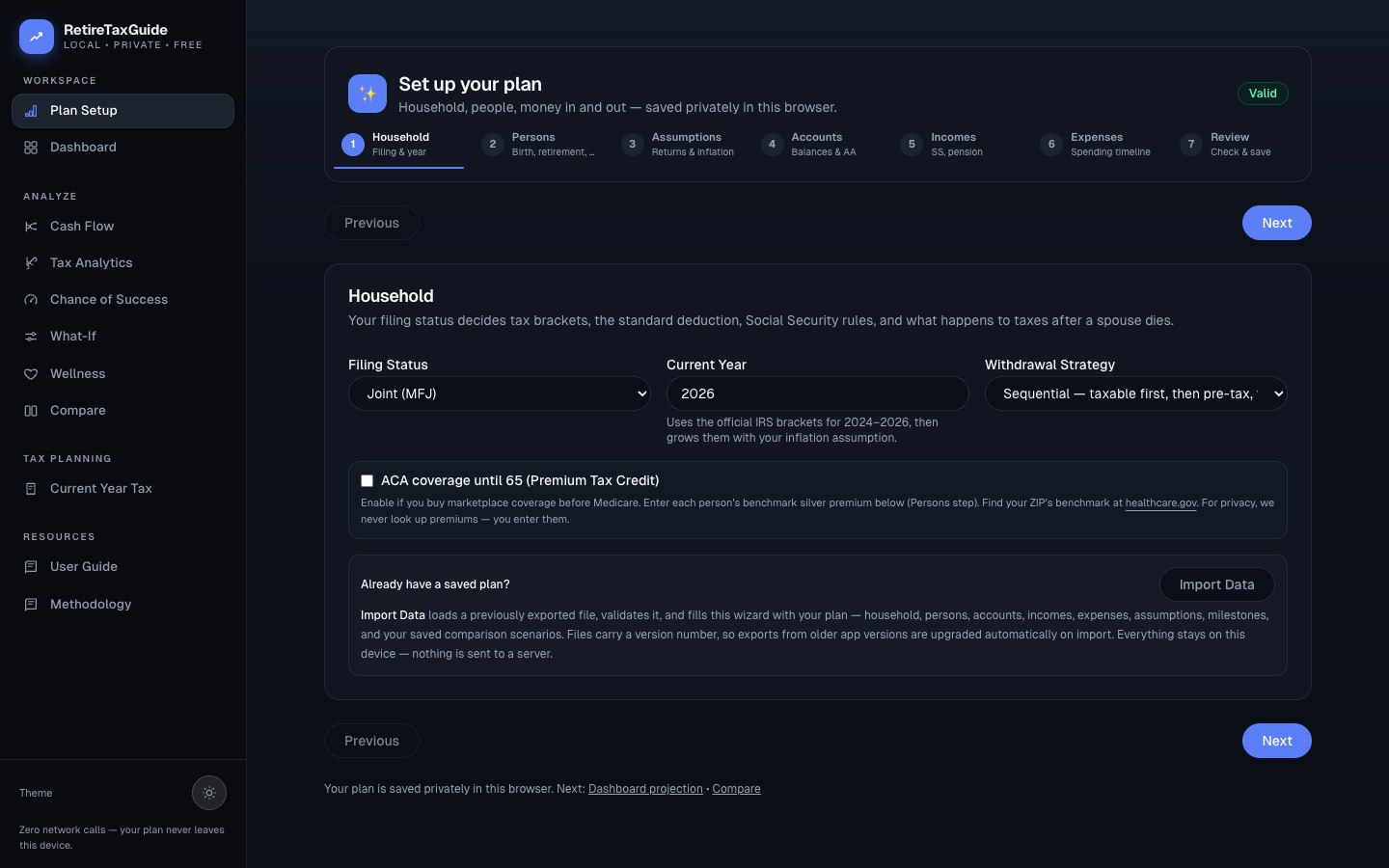
Active step is highlighted in primary blue; completed steps show green checkmarks; click any step to jump to it.
Status badge: Green "Valid" when draft passes all checks, gray "Needs attention" otherwise.
Previous/Next buttons: Validate before advancing. If something is missing or contradictory, an amber error card lists each problem with a "Go to step N" button that jumps straight to it.
Local draft: Everything you enter lives in an unsaved draft until you press Save on Step 7, so you can explore freely and leave at any time without affecting your current plan.
Import/Export: Step 1 has Import Data. Step 7 has Export Data.
Step 1 — Household
Filing Status: Single or Joint (MFJ). Drives tax brackets, standard deduction, and ACA. Switching between them adds or removes the second person automatically.
Current Year (2024-2030): Starting tax year. Official IRS brackets for 2024-2026, then grown with inflation.
Withdrawal Strategy: Sequential (taxable, then pre-tax, then Roth), Bracket Fill (convert pre-tax to Roth up to a target bracket), Proportional, Guardrails, or VPW.
Roth target bracket (10/12/22/24/32%): Only when Bracket Fill is chosen.
ACA coverage until 65: Enables ACA Premium Tax Credit modeling. Enter each person's benchmark silver premium on Step 2 — the app never looks premiums up for you.
Step 2 — Persons
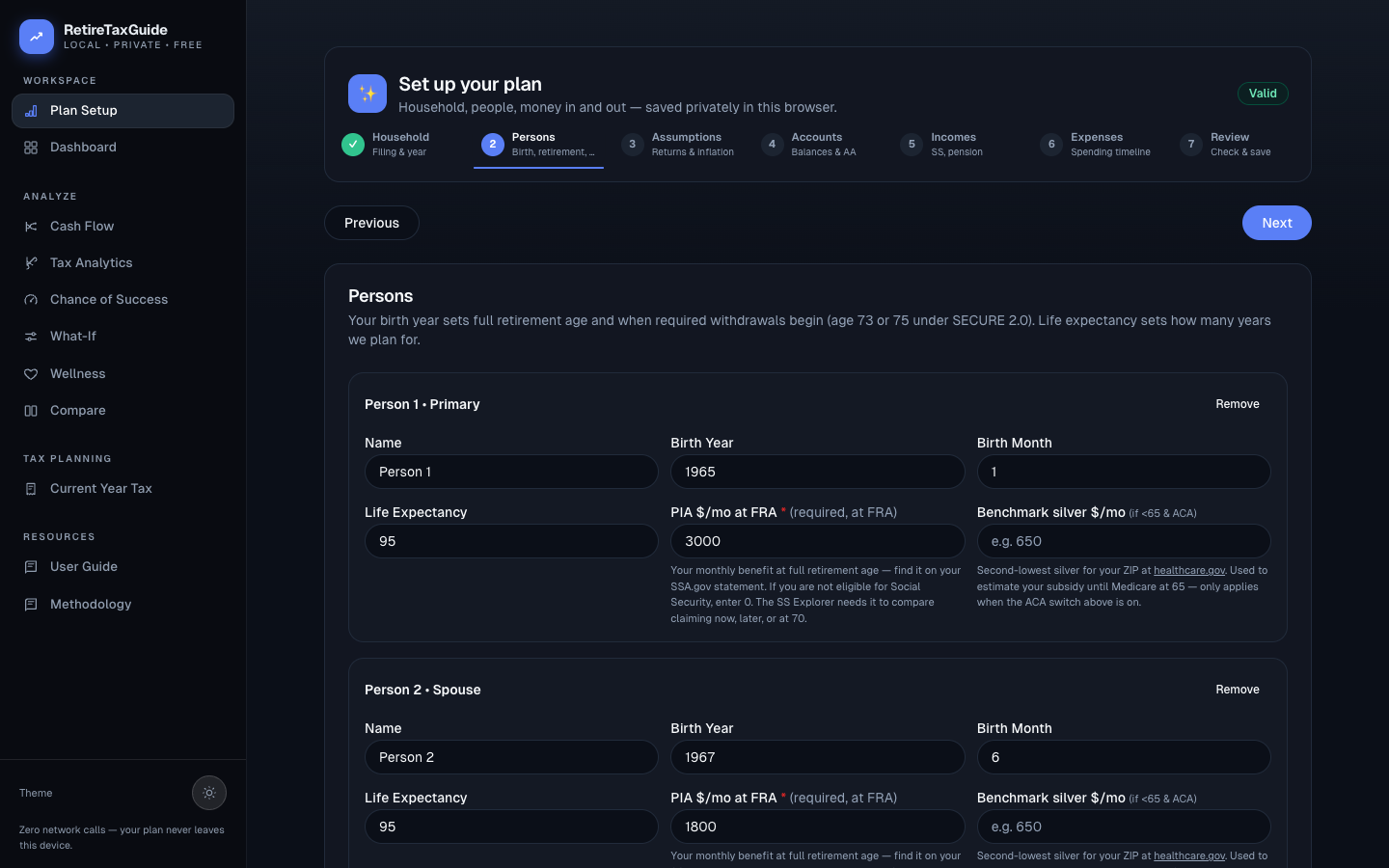
One card per person with: Name, Birth Year (1920-2010), Birth Month, Life Expectancy (70-110), PIA $/mo at FRA (required — this drives Social Security amounts; find it on your SSA statement, or enter 0 if ineligible), Benchmark silver $/mo (optional, ACA only, ignored at 65+).
Add spouse button: Adds a second person card for joint plans. Switching filing status between Single and Joint on Step 1 also adds or removes the second person automatically.
Step 3 — Assumptions
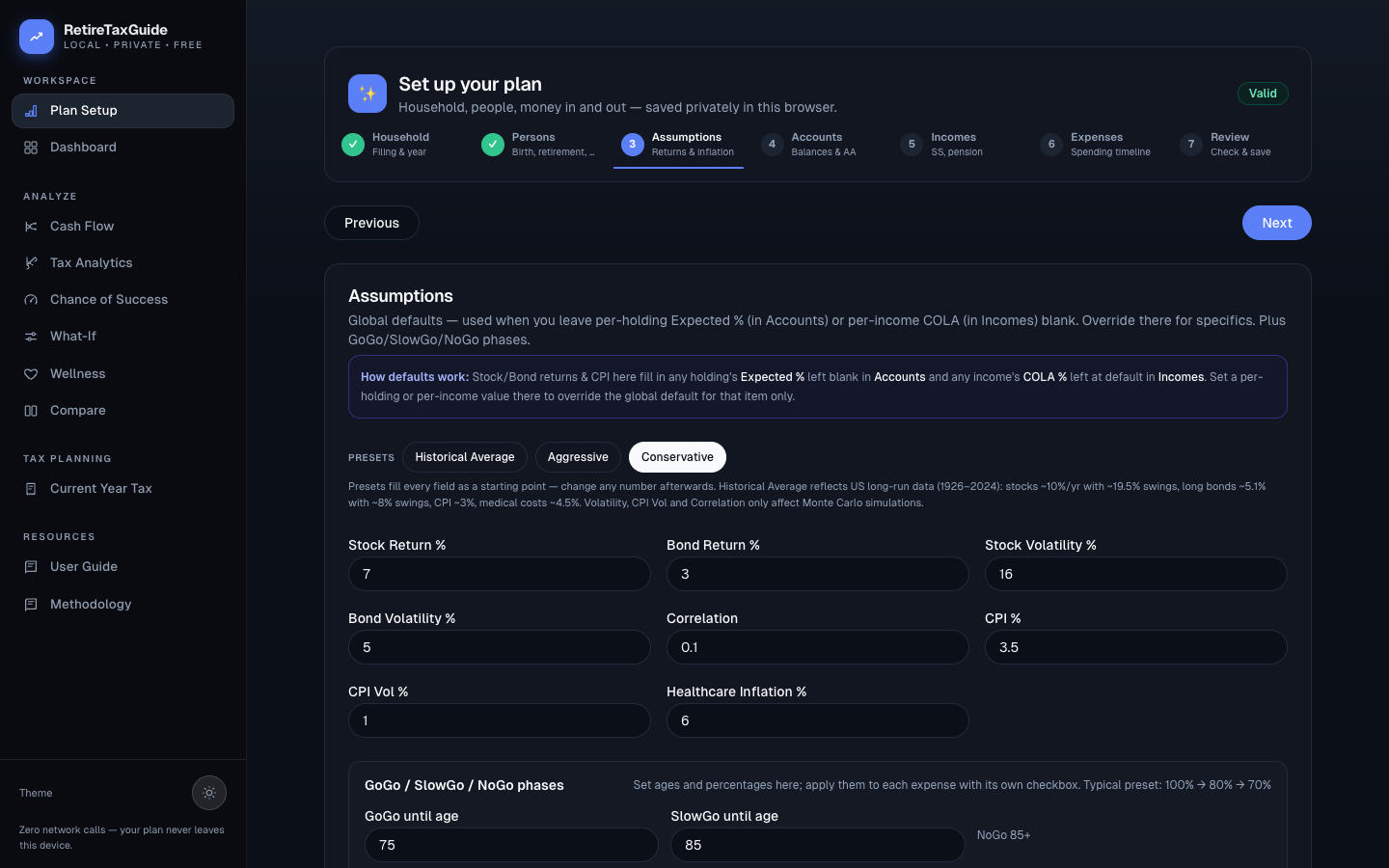
Presets: Historical Average, Aggressive, Conservative. One click fills all fields; Historical Average reflects long-run US data and documents its sources inline.
Number inputs: Stock Return (-5 to 15), Bond Return (-2 to 10), Stock Volatility (0-40), Bond Volatility (0-15), Correlation (-1 to 1), CPI (0-10), CPI Vol (0-5), Healthcare Inflation (0-15).
GoGo/SlowGo/NoGo phases: Spending step-downs with "until age" cutoffs and percentage levels (typical preset: 100% → 80% → 70%). Each expense opts in individually with its own checkbox on Step 6.
Step 4 — Accounts & Holdings
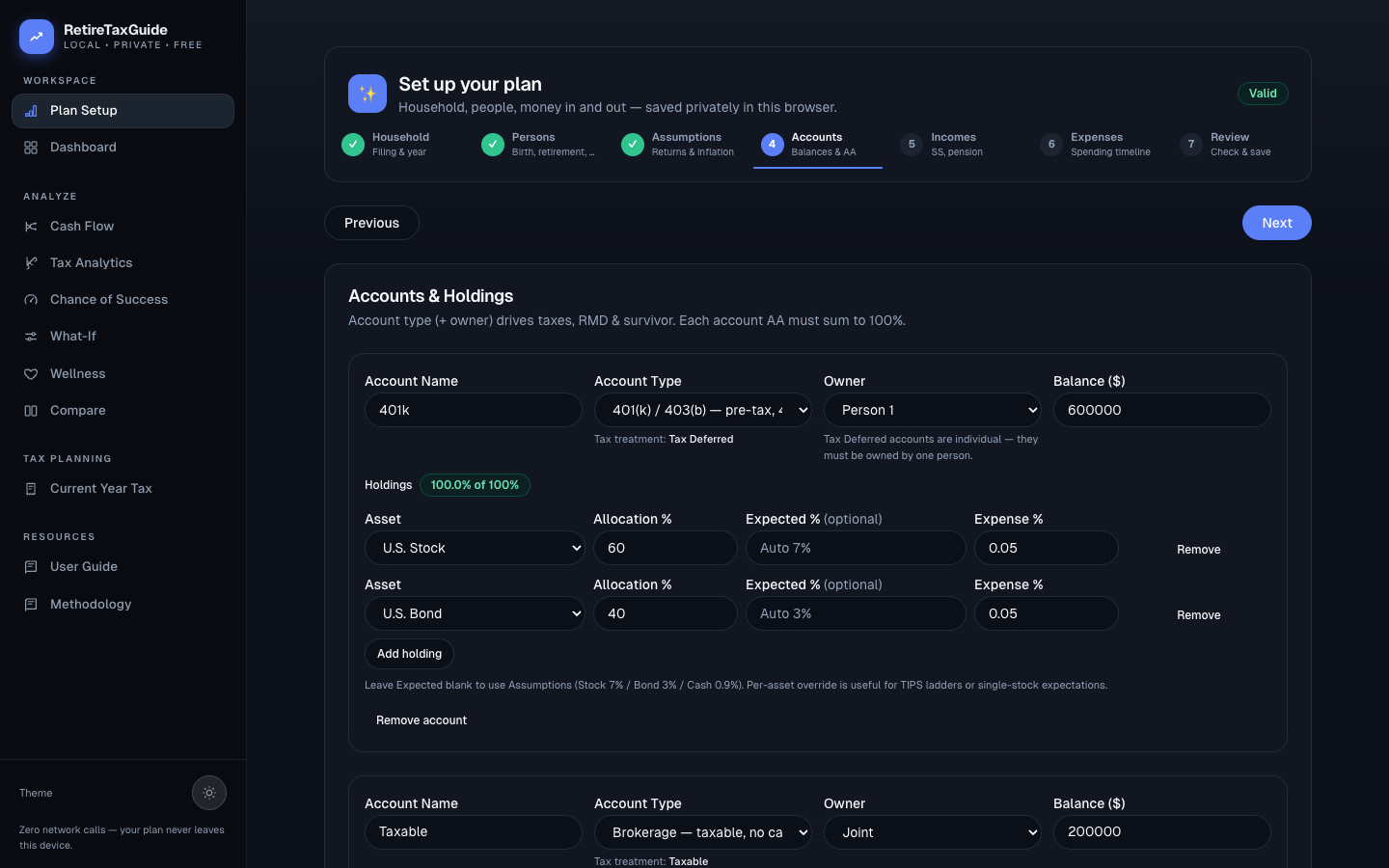
One card per account: Name, Type (401(k), Roth IRA, Brokerage, etc.), Owner, Balance. Use "+ Add account" to pick a type from the picker; individual (non-joint) types auto-assign an owner. Taxable accounts reveal an amber card with Cost Basis, Dividend Yield, and Interest Yield, each previewing its $/yr. Deferred comp reveals a violet card with Equal installments or a Custom schedule whose rows must sum exactly to the balance.
Holdings: Asset select (US Stock, US Bond, Cash, TIPS), Allocation %, Expected %, Expense %. Must total 100% — the badge turns red otherwise and blocks saving.
Step 5 — Incomes
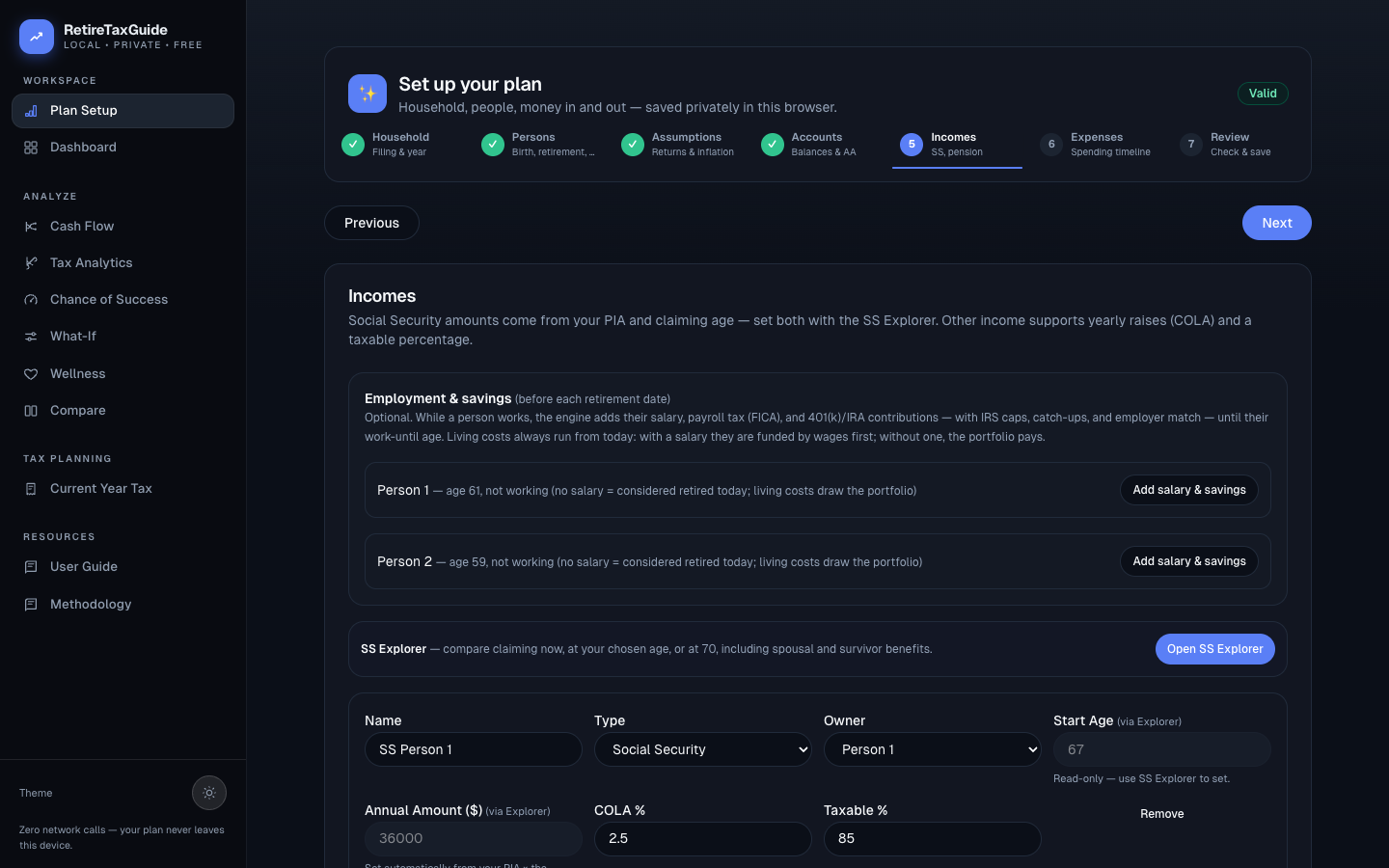
Employment & savings (optional, per person): Current salary, work-until age, annual raise, super catch-up checkbox, contribution rows (a % of salary or $/yr into a chosen account), and employer match (cents per $1 up to a % of salary, into a chosen account). Persons without salary are treated as already retired. Until each work-until age, the engine adds salary, payroll tax, contributions, and match — so retiring a year later counts both the extra savings and the extra working year.
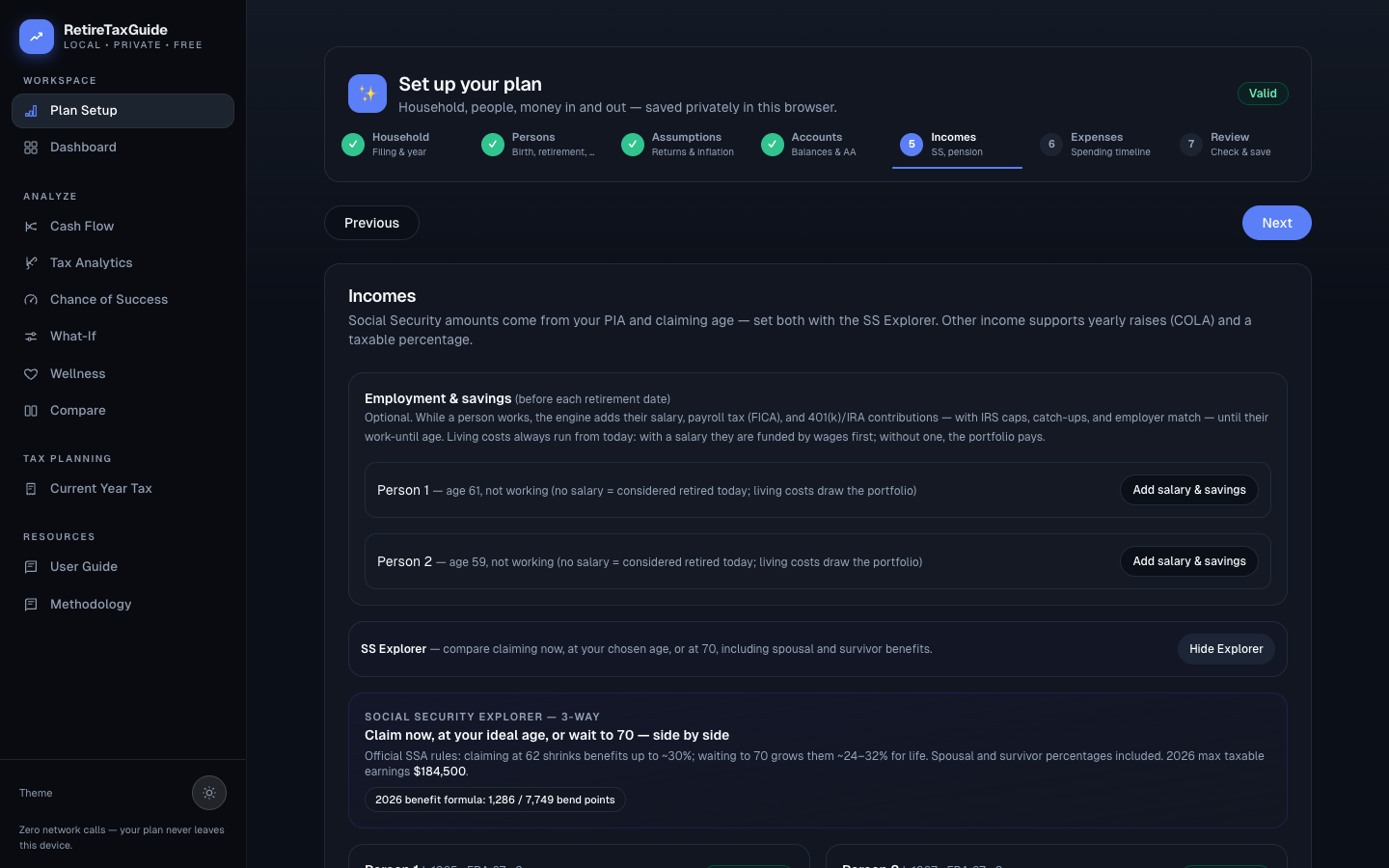
SS Explorer: Open it to compare claiming now, at your ideal age, or at 70 side by side, including spousal and survivor benefits computed under official SSA rules (the header cites the current bend points and max taxable earnings). Pressing Apply to plan writes that column's annual amount and claim age back into the income card.
Income cards: Name, Type (SS/Pension/Annuity/Other), Owner, Start Age, Annual Amount, COLA %, Taxable %. Social Security cards stay in sync automatically — single plans keep one SS income, joint plans get one per person — and their start age and amount are read-only until the Explorer sets them.
Step 6 — Expenses
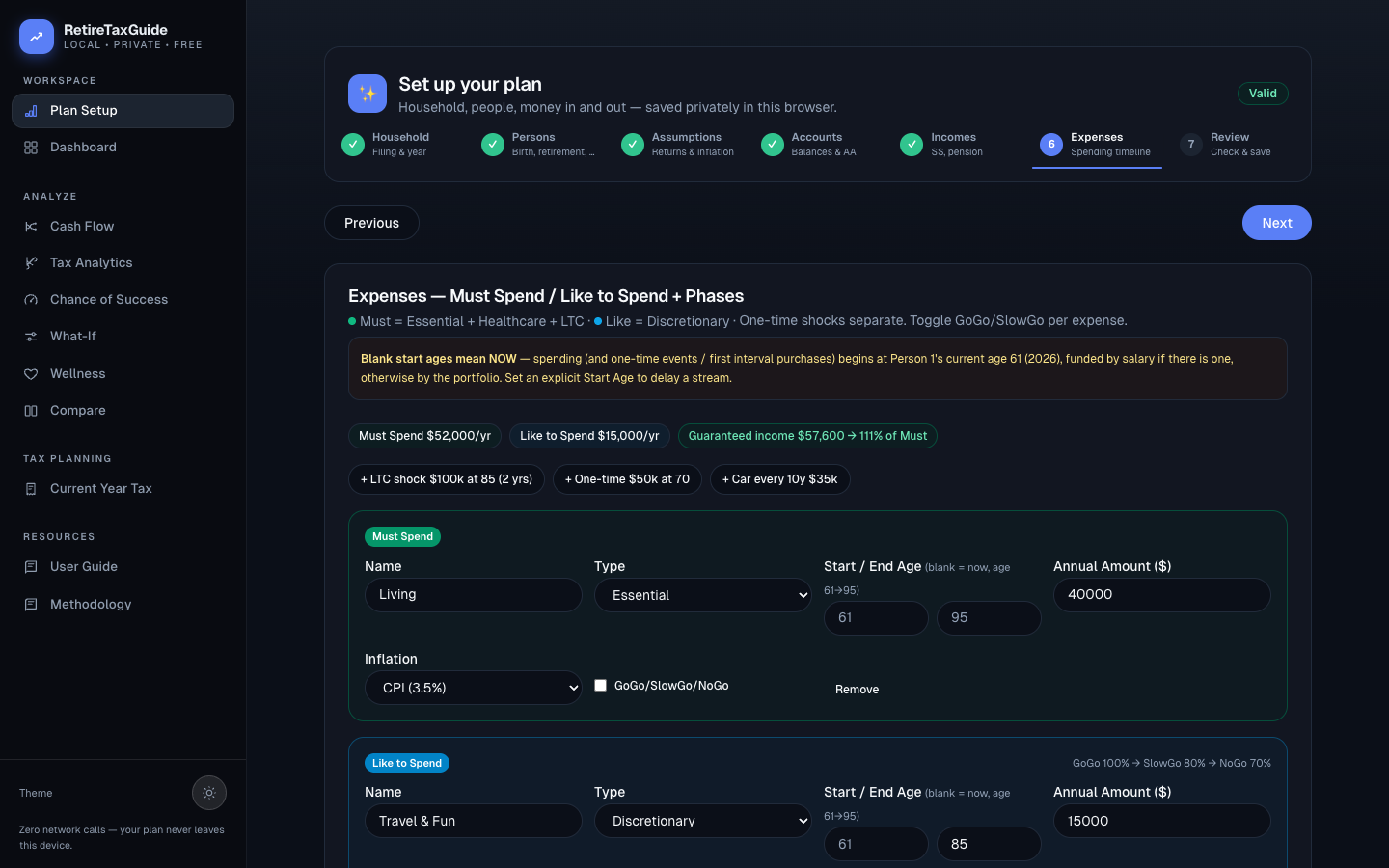
Category legend: Green = Must (Essential + Healthcare + LTC), Sky = Like (Discretionary). One-time shocks stay separate. Blank start ages mean spending starts now, at the household's current age.
Coverage chips: Must Spend $/yr, Like to Spend $/yr, and Guaranteed income as a percentage of Must (emerald at 100%+, amber below) — the gap plus Like spending is what the portfolio must cover.
Quick-add buttons: One-click templates for common shocks — an LTC shock, a one-time expense, and a recurring car purchase — pre-filled with sensible ages and amounts you can then adjust.
Expense cards (color-coded): Name, Type select, schedule fields that adapt to the type (single age for one-time, start/end plus every-N-years for interval, start/end pair for streams), Annual Amount, Inflation select (CPI / Healthcare / None / Custom with its own %), and a GoGo/SlowGo/NoGo checkbox that applies the Step 3 phase percentages.
Step 7 — Review & Save
Milestones editor: Home, college, and other one-off events, alongside auto-derived retirement and SS-claim milestones.
Cash-flow priorities (Flows) editor: The top-to-bottom ordering of which spendable accounts receive each year's after-tax surplus; pre-tax 401(k)/IRA accounts are never eligible (surplus deposited there would be taxed again on withdrawal).
Per-section summaries with Edit buttons: Household, assumptions, persons, accounts (with holding pills and taxable detail lines), incomes, and color-coded expenses — each jumps back to its step.
Save: Green confirmation with timestamp, auto-redirects to Dashboard.
Export/Import: Download or load plan JSON (imports validate and upgrade older versions).